

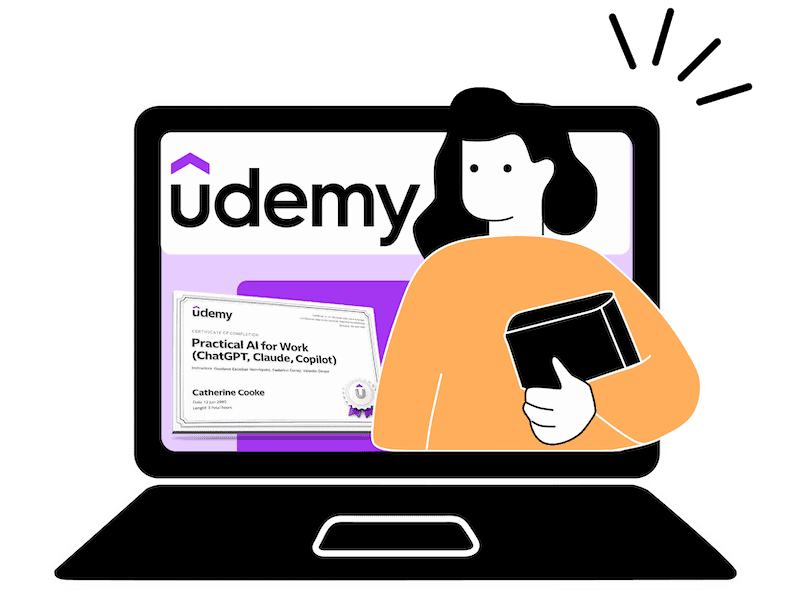

If you’ve just finished a Udemy course, congratulations! The next thing you’re probably wondering is where to find your certificate and how to download it.
The good news is that the process is actually very straightforward once you know where to look. Whether you want to save it as a PDF, download it as a JPG, print it, or add it to your LinkedIn profile, Udemy gives you a few different ways to access your certificate.
I’ve completed quite a few Udemy courses over the years, and one question I see come up time and time again is why a certificate isn’t showing or how to download it once a course has been completed.
In this guide, I’ll show you exactly how to find and download your Udemy certificate, explain the different download options, cover the most common certificate issues, and briefly walk you through how to purchase a course if you’re new to the platform.
I’ve completed quite a few Udemy courses over the years, and downloading a certificate is one of the questions I get asked most often. This guide is based on my own experience using the platform and is designed to help you quickly find, download, and troubleshoot your Udemy certificate.
Catherine CookeUpskillwise Advisor

A Udemy certificate is a Certificate of Completion awarded when you successfully finish a paid Udemy course. Once every lesson has been completed and marked with a purple checkmark, your certificate becomes available to download as either a PDF or JPG, making it easy to print, save, or share on platforms like LinkedIn. Unlike certificates from university-backed learning platforms, a Udemy certificate confirms that you’ve completed the course rather than providing an accredited qualification or professional certification. While it may not carry the same academic recognition, it can still be a valuable way to showcase new skills, demonstrate your commitment to continuous learning, and strengthen your CV, portfolio, or LinkedIn profile. If you’re new to the platform, you may also find my Udemy review helpful, where I take a closer look at the learning experience, Udemy pricing, and who it’s best suited for. There are two simple ways to access your certificate: through the Certificates section on the course page or by clicking the trophy icon within the course player. From there, you can preview, download, print, or share your certificate in just a few clicks. Whether you’ve purchased an individual course or are learning through Udemy Business, the process for accessing your certificate is largely the same. If your certificate isn’t appearing, the most common causes are incomplete lessons, progress not syncing correctly, or taking one of Udemy’s free courses, which don’t include certificates. In most cases, refreshing the page, checking that every lesson is marked as complete, or accessing your account from the desktop version of Udemy resolves the issue. If you’re still deciding whether Udemy is the right platform for you, it’s also worth exploring some of the best Udemy alternatives before committing to a course.Udemy Course Certificate Summary
How to Download Your Udemy Certificate
To receive your certificate, you’ll first need to complete the entire course. That means every section and lesson should be marked as complete, with a purple checkmark displayed next to each video lesson. Once you’ve finished the course, your certificate will automatically become available.
There are two easy ways to access and download your Udemy certificate.
Method 1: Download Your Certificate from the Course Page
The first method is through the course page itself.
- Open your completed Udemy course.
- Scroll down until you reach the Certificates section.
- Click Udemy Certificate.
A new window will open displaying your certificate. From here, you’ll have the option to download it as either a PDF or a JPG, depending on how you plan to use it.
How to Download Your Certificate as a PDF
If you’d like a copy to print, upload to your portfolio, or keep for your records, downloading the PDF version is usually the best option.
Once the PDF opens, click the Download icon in the top-right corner of the page. Your certificate will then be saved to your computer’s Downloads folder.
How to Save Your Certificate as a JPG
If you prefer an image version, select the JPG option instead.
When the certificate opens in your browser, right-click anywhere on the image, choose Save Image As, then select where you’d like to save it on your computer.
Method 2: Download Using the Trophy Icon
There’s another quick way to access your certificate without scrolling through the course page.
Near the top-right corner of the course player, you’ll see a small trophy icon. Once you’ve completed the course, clicking this icon will display the Get Certificate option.
Selecting it opens the same certificate page, where you can preview, download, print, or share your certificate directly to platforms like LinkedIn, Facebook, or X.
Both methods take you to the same certificate, so you can simply use whichever one you find most convenient.
How to Buy a Udemy Course
If you’re new to Udemy, purchasing a course is a straightforward process.
Start by searching for the topic you’d like to learn. Udemy offers thousands of courses covering everything from programming and artificial intelligence to business, marketing, photography, design, and personal development.
When comparing courses, I always recommend looking beyond the course title. Take a few minutes to check the overall rating, the number of student reviews, what’s included in the curriculum, and when the course was last updated. These details can give you a much better idea of the course quality before you buy.
Once you’ve found a course you’re happy with, click on it to view the course page. Depending on the course, you’ll either have the option to purchase it individually or access it through Udemy’s Personal Plan subscription, which gives you access to thousands of eligible courses for a monthly or annual fee.
If you’re buying an individual course, simply click Buy Now (or Buy Individual Course), complete the checkout process, and choose your preferred payment method. Udemy accepts most major credit and debit cards, along with PayPal, Google Pay, and Apple Pay in supported regions.
As soon as your payment has been processed, the course will be added to your account, and you can start learning straight away.
If you later decide the course isn’t right for you, Udemy also offers a 30-day refund policy on most individual course purchases, giving you extra peace of mind before you buy.
Why Isn't My Udemy Certificate Showing?
If you’ve completed your course but can’t find your certificate, don’t worry. In most cases, the issue is easy to fix. Here are a few things worth checking.
Make Sure You’ve Completed Every Lesson
Your certificate will only become available once you’ve completed the entire course. Every lesson should be marked as complete, with a purple checkmark displayed next to each video lesson.
If you’ve skipped a lesson or haven’t watched a video all the way through, Udemy may not recognise the course as complete.
Refresh the Page
Sometimes your progress doesn’t update immediately. Refreshing the course page or signing out and back into your account can often resolve the issue.
Try the Desktop Version
If you’ve been learning through the Udemy mobile app, try logging into your account on a desktop browser.
Occasionally, progress can take a little longer to sync between devices, which may temporarily delay your certificate from appearing.
Check That the Course Includes a Certificate
Most paid Udemy courses include a Certificate of Completion, but free Udemy courses do not currently provide certificates.
If you’re taking a free course, this is likely why you can’t find one.
Give Udemy a Few Minutes
If you’ve only just completed the final lesson, give Udemy a little time to generate your certificate. In most cases, it appears within a few minutes.
If you’ve tried all of the above and your certificate still isn’t showing, it’s worth contacting Udemy Support for further assistance.
Final Thoughts
Downloading your Udemy certificate is a quick and straightforward process once you’ve completed your course. Whether you choose to save it as a PDF, download it as a JPG, print it, or share it on LinkedIn, your certificate is a simple way to recognise the skills you’ve gained and the time you’ve invested in learning.
If you’re new to the platform or still deciding whether Udemy is right for you, I also recommend checking out my in-depth Udemy review, where I cover everything from course quality and pricing to the pros and cons of learning on the platform.
You may also find my Coursera vs Udemy comparison helpful if you’re deciding between the two platforms. And if you’re looking to start learning without spending any money, be sure to check out my guide to Udemy’s free courses.